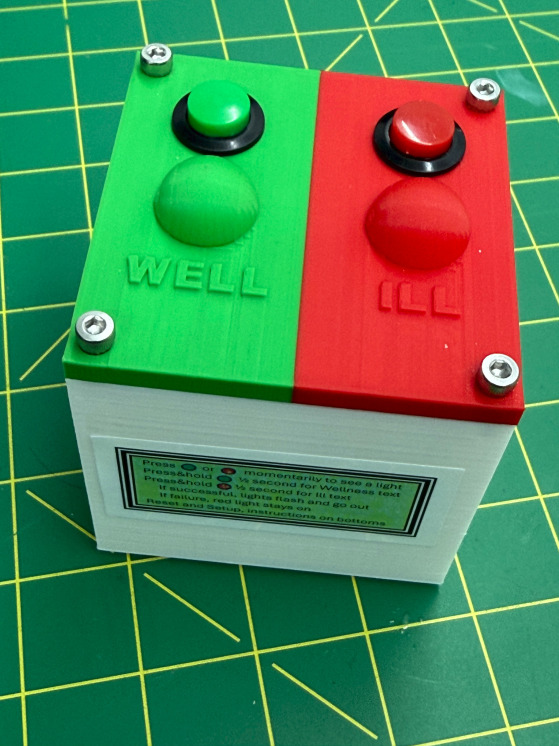
WellCom - Help
Help: Installation, Use, and Troubleshooting
Installation (First-Time Setup) - Setup Mode
Plug in the WellCom device.
On your phone, open Wi-Fi settings and connect to the WellCom setup network (no password required).
Your phone will open the WellCom setup page (or go to http://192.168.4.1).
Enter:
Your 2.4 GHz Wi-Fi network name and password
Your time zone
The To phone number (the person who receives wellness messages)
The From phone number (the person using the device)
Confirm the consent checkbox and tap Save & Reboot.
After rebooting, WellCom will attempt to send a Test message to confirm that setup was successful.
Daily Use - Green and Red buttons on the top
Press the green or red button for a split second, just a quick touch, and the light will come on briefly to indicate the device is working properly.
Press the green button "Well" for about 1 second to send a “doing OK” message. The green light will flash and then stay on for a moment, indicating the message has been sent.
Press the red button "Ill" for about 1 second to send a “not feeling well” message. The reg light will flash and then the green light will come on for a moment, indicating the message has been sent.
If no button is pressed by 10:00 AM (local time), WellCom may send a reminder message indicating that no wellness update has been sent yet.
Status Lights on top and Reset Button on the back side
Solid Red Light
A solid red light means WellCom encountered a problem sending messages (for example, Wi-Fi connectivity issues or phone numbers that are not yet opted in).
If you see a solid red light:
Press the RESET button for ~2 seconds
→ The device will restart (same as unplugging and plugging it back in).
Press and hold RESET for ~5 seconds
→ The device enters Setup Mode (as described above), allowing you to review or change Wi-Fi settings, phone numbers, or time zone.
Press and hold RESET for ~10 seconds
→ The device will attempt to download and install the latest software version.
This is rarely needed. In most cases, only do this if instructed by the WellCom provider.
Phone Numbers, Login, and Preferences
WellCom sends text messages only to phone numbers that have been registered and opted in.
To manage phone numbers, consent, or preferences, visit the WellCom SMS Preferences page when your phone has internet access:
Follow this link https://wellcom-subscriptions-backend-3c07b04d31b9.herokuapp.com/login to the WellCom SMS Preferences web site.
On this page you can:
Register your phone number
Confirm SMS consent
Opt out of messages
Each WellCom text message also includes instructions to opt out (reply STOP) or request help (reply HELP).